How to auto-caption a video in 2026 without uploading it
The model that made auto-captioning good is open source and runs on your own machine. So your footage never has to leave your disk to get captions.
The Delivvo team· July 21, 2026 8 min read
Yes, you can auto-caption a video in 2026 without uploading it anywhere. You can generate accurate captions on your own machine, offline, and your footage never leaves your disk. The reason is simple: the model that made automatic captioning genuinely good is open source and runs locally. The upload step that most caption tools quietly perform is a choice they made, not a requirement of the technology.
This is why captions matter more than they used to, which popular tools send your video to a server first, and how to caption locally instead.
Why captions stopped being optional
Because most video is watched on mute, and a big share of your audience needs the text regardless of preference.
The behavior is well documented. In a Verizon Media survey of 5,616 US consumers, 69% said they view video with the sound off in public places, 50% said captions are important because they watch with sound off, and 80% said they are more likely to finish a video when captions are available (Forbes). That study is from 2019, and the older "85% watched without sound" figure that circulates is older still, from a 2016 Digiday piece, so treat the exact percentages as dated. The direction has only strengthened as short-form vertical video has grown.
There is also an access reason that is not about preference at all. The World Health Organization states that "over 5% of the world's population, or 430 million people, require rehabilitation to address their disabling hearing loss", and projects that by 2050 nearly 2.5 billion people will have some degree of hearing loss (WHO). Captions are how a large and growing group experiences your video at all. Skipping them narrows your audience on both fronts: the muted scrollers and the people who cannot hear it.
Keep reading
The tool most people reach for uploads your video first
Here is the catch with the easy options. The popular auto-caption tools generate captions in the cloud, which means your video is uploaded to somebody's server before you get a single line of text.
YouTube is the obvious one. Its automatic captions are generated after upload, on Google's servers: "automatic captions may not be ready at the time that you upload a video", and Google warns that "the quality of the captions may vary" and that "you should always review automatic captions" (Google). Useful, but it only exists once the video is on YouTube.
The same pattern holds elsewhere. Descript is a cloud tool, so transcription runs after your media uploads. CapCut markets its auto-caption feature as an online generator (CapCut), and its generative AI features run on its servers. For a public marketing clip, none of that matters. For a client's unreleased footage, or anything under an NDA, uploading the raw video just to get captions is a decision, not a detail. We went deeper on the upload question in which AI video features need the internet.
The open-source model that changed this: Whisper
The reason local captioning is now realistic, and not a compromise, is OpenAI's Whisper. It is "a general-purpose speech recognition model", trained on a large and diverse dataset, and it does multilingual transcription and translation (OpenAI). Critically, "Whisper's code and model weights are released under the MIT License" (OpenAI), which is why it runs on your own hardware for free.
Its quality comes from scale. The Whisper paper describes training "on 680,000 hours of multilingual and multitask supervision" (arXiv). That is the jump that took auto-captions from a rough draft you rewrote to a transcript you mostly just fix.
And it runs on ordinary machines. The whisper.cpp project is a "port of OpenAI's Whisper model in C/C++", a "plain C/C++ implementation without dependencies" that does CPU-only inference (GitHub). No cloud account, no GPU farm, no upload. The transcription happens on the same laptop the footage is already on.
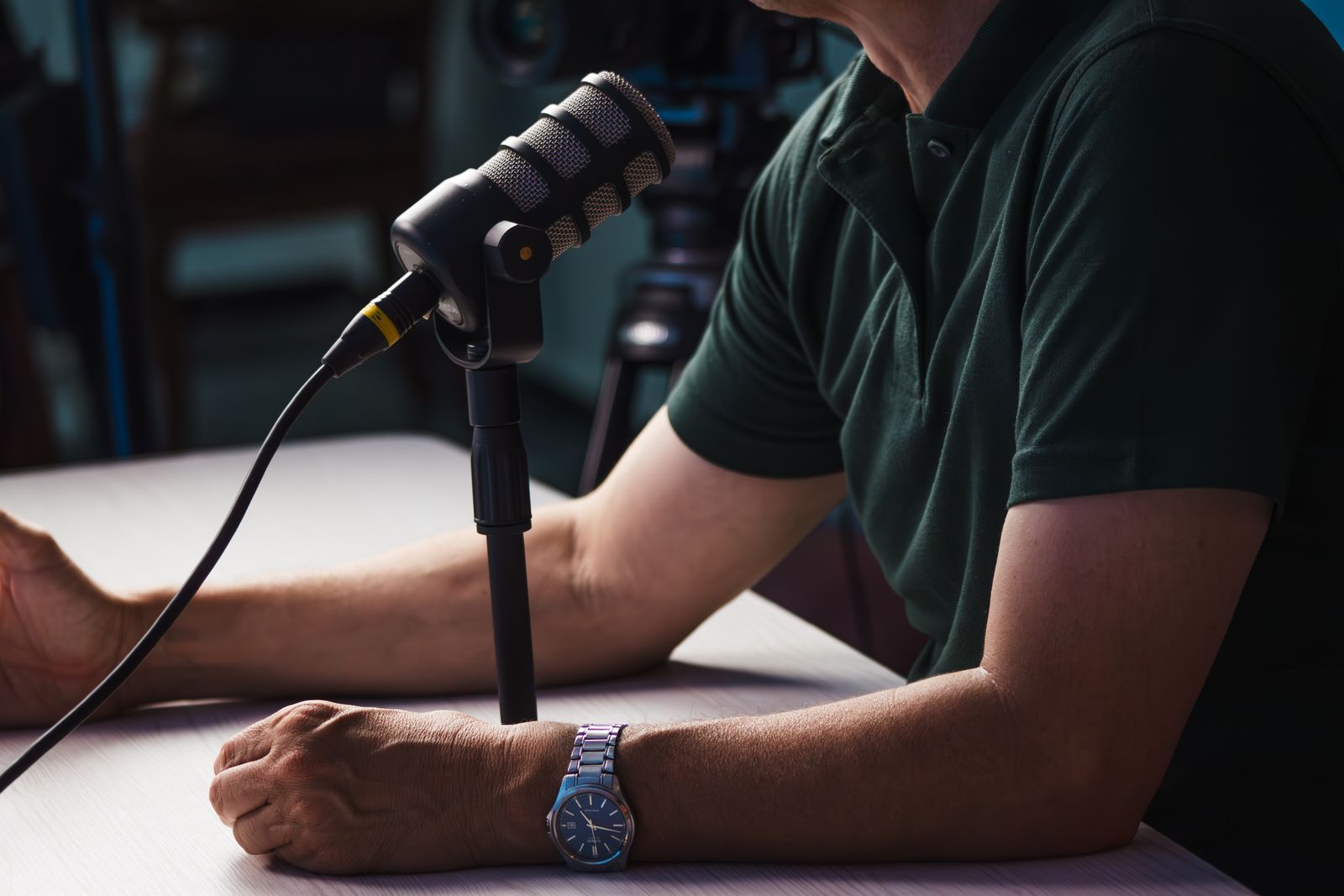
A close-up of a podcast microphone setup, the kind of spoken audio that gets auto-captioned
How to auto-caption locally, step by step
The workflow is the same whether you use a standalone Whisper tool or an editor with it built in:
Keep the file local. Do not upload it to a captioning site. The whole point is that the audio stays on your machine.
Run local transcription. Feed the video or its audio to a local Whisper build. You get back a timed transcript, and good tools give you word-level timing, not just line-level, which makes the next steps far easier.
Read and fix the text. This is the step people skip and should not. Auto-captions get names, jargon, and homophones wrong. Read the transcript against the audio and correct it. A caption with the client's product name misspelled is worse than no caption.
Set timing and length. Keep each caption on screen long enough to read and short enough to fit. Break lines at natural pauses, not mid-phrase.
Choose burned-in or a sidecar file. Burned-in captions are baked into the picture and always show, which suits social video. A sidecar SRT or VTT file rides alongside the video and can be toggled or edited later, which suits platforms that support it. Many workflows export both.
Style them to be readable. High contrast, a legible size, and safe placement away from the edges. Captions exist to be read on a phone in daylight, so design for that.
"Auto" is not "done"
Automatic is a starting point, not a finish line, and the standards make that clear. The US FCC's caption-quality rules require captions to be "accurate", "synchronous", "complete", and "appropriately placed", but the FCC deliberately did not set a single numeric accuracy percentage (Cornell Law School). The widely repeated "99% accuracy" figure is an illustrative example, not a legal floor. The Described and Captioned Media Program puts the real target plainly on its quality page: "errorless captions are the goal" (DCMP).
No auto-caption model hits errorless on its own. The human review pass is what turns a Whisper transcript into captions you would put a client's name on. Budget the ten minutes. It is the difference between captions that help and captions that embarrass.
Doing it inside one editor
Running a separate Whisper tool, then importing the SRT into an editor, then styling it, is three tools and a lot of file juggling. The tidier version is an editor that does the local transcription itself.
That is one of the things I built Cutroom to do, so read this knowing that. Cutroom is a Windows video editor with local captioning built in. Transcription runs through whisper.cpp on your machine, with word-level timing, so there is no upload to a captioning server. You edit the transcript, restyle the captions, and export, all in one place, and the audio never leaves your disk to get turned into text. It handles Arabic as well as English, which matters if you caption or subtitle for Gulf clients.
The honest scope, because this article is about not uploading: the captioning itself is fully local. The moment you connect an AI assistant to the editor and ask it to generate something new, an image, a voice, a clip, that generation runs on your provider, on your key, the same as any tool. Captions are not generation. Turning existing speech in your own file into text is exactly the kind of work that has no reason to leave your machine, and in Cutroom it does not. If keeping work off the cloud is a theme for you, our guide to protecting your privacy from AI is a good companion read.
Cutroom captions your video locally: transcription runs through whisper.cpp on your own machine, with word-level timing and Arabic support, so your footage never uploads just to get subtitles. See how it works.
A local captioning checklist
Keep the source file on your machine. If a tool needs the upload before it transcribes, that is a cloud tool.
Use a Whisper-based transcriber. It is the model behind the good local options, and it is free and open source.
Always do the review pass. Fix names, terms, and homophones. Auto is a draft.
Match the format to the platform. Burned-in for social, a sidecar SRT or VTT where it is supported.
Design for a muted phone. High contrast, readable size, safe placement. That is where most people will watch.
FAQ
Can I auto-caption a video offline without uploading it?
Yes. Local transcription models based on OpenAI's Whisper run on your own machine, including the CPU-only whisper.cpp build, so the audio never uploads. Tools that require an upload first, like YouTube's auto-captions or cloud editors, are making a design choice, not following a technical requirement.
Do YouTube and CapCut upload my video to caption it?
Yes in effect. YouTube generates automatic captions on its servers after you upload the video, and CapCut markets an online caption generator with server-side AI. That is fine for public content, but for confidential or NDA footage, a local captioning workflow keeps the file on your machine.
How accurate are automatic captions?
Good enough to be a strong first draft, not good enough to publish unchecked. Whisper's quality comes from training on 680,000 hours of audio, but it still misses names, jargon, and homophones. Caption-quality standards from the FCC and DCMP effectively expect errorless captions, which means a human review pass is required.
What is the best format, burned-in or SRT?
It depends on the platform. Burned-in captions are baked into the video and always display, which suits social and vertical video. A sidecar SRT or VTT file can be toggled and edited later, which suits platforms that support it. Many creators export both from the same project.